Ages 7–12. No coding experience needed. Basic mouse skills and adult reading support help.
Practice time
About 15–30 minutes per session. Larger projects can span several sessions.
Use a laptop or desktop. A physical keyboard works best for typing and coding.
What you’ll learn
Use events, sequence and movement
Repeat actions and test conditions
Store scores and coordinate sprites
Debug, reuse blocks and explain an algorithm
What you’ll make
Make a sprite say hello and move
Create a game with a score and a clear goal
Build and explain an original project using reusable blocks
FROM THE CURRENT CURRICULUM
Your learning path
Open a level to see its lessons.
1First creations
Give a character a voice and discover how instructions become a program.
Make your sprite say hello — Connect your first event, greeting, and movement.
An interactive greeting card — Remix an official Scratch greeting card into your own message.
A three-part story — Tell a beginning, middle, and ending with timed blocks.
2Movement & repetition
Control direction, coordinates, key presses, and repeating actions.
A tour of the stage — Visit four landmarks using x and y coordinates.
Drive with the arrow keys — Build responsive keyboard movement.
A repeating dance — Replace copied blocks with loops.
3Decisions & debugging
Use tests to change what happens and learn to investigate mistakes.
A shape-drawing robot — Draw polygons with loops and the Pen extension.
A maze with fair rules — Remix the official maze starter and add reliable collision handling.
A reaction challenge — Make a character respond differently to a correct and incorrect action.
4Scores, timers & input
Store information and use it to build games with a clear goal.
A click-powered counter — Keep and display a changing score.
Catch and count — Build a game with collecting, scoring, and randomness.
A quiz that keeps score — Ask questions, compare answers, and finish cleanly.
5Sprites working together
Coordinate scenes and make several scripts cooperate.
A story with choices — Use messages to coordinate characters and scenes.
A coordinated stage show — Make several scripts work in parallel and in sequence.
Remix Pong into your own game — Extend an official starter with a score and game-over state.
6Clones & dynamic games
Create many objects with a few scripts and clean them up reliably.
A sky full of stars — Create and clean up independent clones.
Pop a sky of balloons — Combine clones, local state, and shared scoring.
A fair survival challenge — Balance a clone-based game with lives and difficulty.
7Lists & useful data
Collect, find, and summarise information with lists.
A useful list assistant — Store several items and display them in order.
A quiz with a question bank — Use matching lists to separate questions from program logic.
A small data investigation — Collect numbers and calculate a summary.
8Reusable code & algorithms
Give repeated ideas names and inputs so your programs are easier to change.
A reusable shape factory — Give drawing routines names and inputs.
A reusable dialogue engine — Separate a story’s content from repeated presentation code.
An algorithmic pattern lab — Combine nested loops and custom blocks to generate patterns.
9Independent creator
Plan, build, test, and explain complete projects with your own design decisions.
Capstone: show an algorithm — Explain a step-by-step process through an interactive visualisation.
Capstone: your own arcade — Design an original game using the concepts you have mastered.
Capstone: tell a story with data — Turn a small dataset into an interactive explanation.
TRY BEFORE CREATING AN ACCOUNT
Learn with Lumi’s whiteboard
Watch a complete Lumi-led lesson with narrated examples. Pause to predict, follow the highlighted instructions, then try the idea yourself.
NEXTGEN SMARTKIDS · WATCH & TRY
Learn with Lumi’s whiteboard.
10 visual chapters · English narration · Pause and practise
Scratch01 / 10
DISCOVER WITH LUMI
Make your sprite say hello
A PROJECT WITH A PURPOSE
Give a robot a clear instruction
Programming turns an idea into precise instructions. You will use the same pattern to start stories, games and animations.
Predict→Trace→Test
0:00 / 3:49
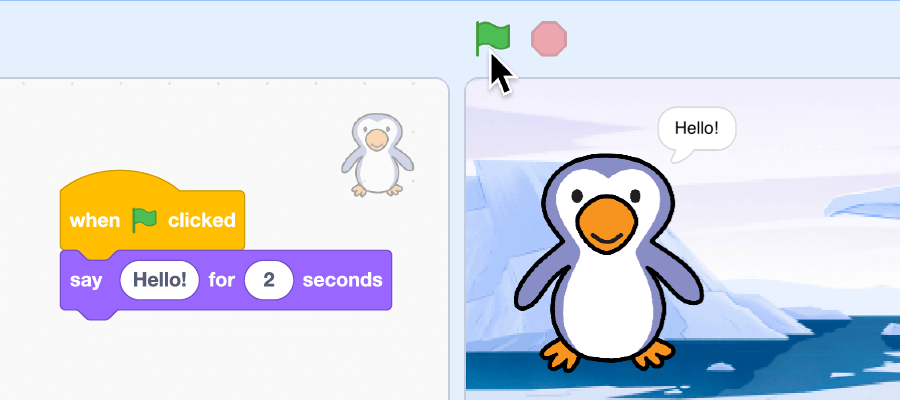
Look closely at the actual Scratch interface
Scratch interface images and icons from the Scratch Foundation’s open-source editor. Nova, Pip and Lumi are NextGen characters. Sources and credits.
Try a small prediction
A green-flag script says Hello, then moves. Which happens first? Swap the two instructions and predict the change.
This public sample does not save results. Parent-managed student accounts connect the full editor, projects and understanding checks.
Parents stay in control
AI help is optional, starts off and needs adult approval. AI can make mistakes.
AI choices, privacy & coaching
Written lesson questions and Creative AI each need separate approval. Usage limits apply; prepared guidance works without AI. Keep personal details and private work out of questions.
Optional coaching is arranged separately, subject to availability.
Blocks let beginners focus on sequence, loops and decisions while reducing typing demands. Those ideas carry over to text coding, but Python also needs comfortable reading and typing.
How does progression work?+
The path has lesson checks and separate level skill tests. Passing a prerequisite skill test unlocks the next level; instructor review is available when an instructor is assigned.
How do we start?+
Create one parent account, choose yourself or add a child, and select this path. Children use their own parent-managed student username and password. All learning paths are free during launch.
Explore another path
Supplementary learning, not an accredited qualification. Contact the team.